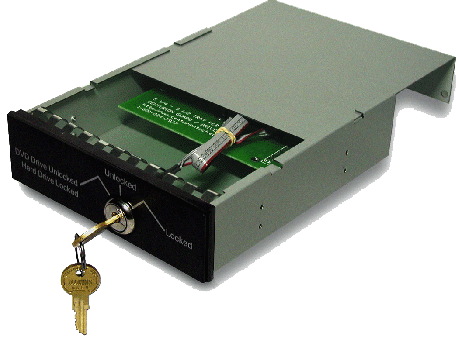
Floppt Drive Disabler


Allows you to easily enable or disable Floppy drives on your Windows 2000, 2003, or XP system

DOWNLOAD

Floppt Drive Disabler

Turn Off ur computer in a click


Actually I lied. Actually a double-click. But that doesn't sound like a good title...so there :=-

It is really simple, and this will work under Windows XP, and 2003 - not sure if it will work under Vista, but I would imagine the UAC prompt would ruin the whole experience.

Open notepad and put in the following text:

shutdown.exe -s -t 00


Save it on the desktop as "Shutdown.bat"


Now if you double click on the icon "Shutdown" your system will shutdown immediately with no questions asked.

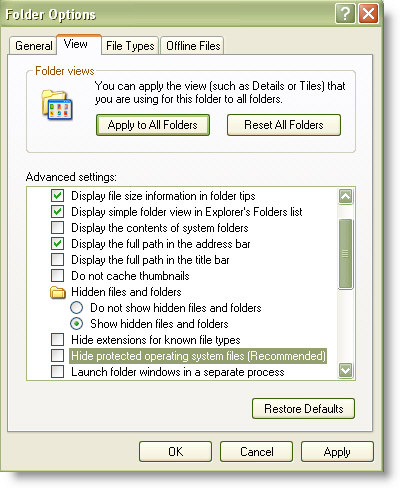
Remove Virus in XP that Disables “Show Hidden Files”


There is a certain virus that prevents XP users from viewing the hidden files.

The virus meddles with the ’Show hidden files and folders’ option in the Folder Options and the option keeps bouncing back to ‘Do not show hidden files and folders’, despite repeated trials.

Here is how you can set this problem right:

Navigate to the windows registry:
Go to Start menu
Click Run
Type regedit in the text box and then click Enter.

When the Registry Editor opens, perform the following steps:

Go to the following registry key:

Go to HKEY_LOCAL_MACHINE and then open Software.Under this navigate to: Microsoft -> Windows -> Current Version -> Explorer Then go to Advanced -> Folder -> Hidden -> SHOWALL
Delete the value CheckedValue.
(Its type should be REG_SZ and data should be 2 or 0.)

Create a new DWORD value called CheckedValue (same as above, except that the type is REG_DWORD).

Modify the value data to 1 (0×00000001).This should enable you to select the ‘Show hidden files and folders’ option without much problem.Do drop in comments if there are further queries and we shall try to find answers.

Accessibility Keyboard Shortcuts


Right SHIFT for eight seconds - Switch FilterKeys either on or off

Left ALT+left SHIFT+PRINT SCREEN - Switch High Contrast either on or off

Left ALT+left SHIFT+NUM LOCK - Switch the MouseKeys either on or off

SHIFT five times - Switch the StickyKeys either on or off

NUM LOCK for five seconds - Switch the ToggleKeys either on or off

Remote Desktop Connection Navigation


CTRL+ALT+END - Open the micrsoft Windows NT Security dialog box

ALT+PAGE UP - Switch between programs from left to right

ALT+PAGE DOWN - Switch between programs from right to left

ALT+INSERT - Cycle through the programs in most recently used order

ALT+HOME - Display the Start menu

ALT+DELETE - Display the Windows menu

CTRL+ALT+BREAK - Switch the client computer between a window and a full screen

CTRL+ALT+Minus sign (-) - Place a snapshot of the active window in the client on the Terminal server clipboard and provide the same functionality as pressing PRINT SCREEN on a local computer

CTRL+ALT+Plus sign (+) - Place a snapshot of the entire client window area on the Terminal server clipboard and provide the same functionality as pressing ALT+PRINT SCREEN on a local computer

Some Keyboard Shortcuts From Microsoft


Windows Logo - Display or hide the Start menu

Windows Logo+D - Display the desktop

Windows Logo+BREAK - Display the System Properties dialog box

Windows Logo+M - Minimize all of the windows

Windows Logo+SHIFT+M - Restore the minimized windows

Windows Logo+E - Open My Computer

Windows Logo+F - Search for a file or a folder

CTRL+Windows Logo+F - Search for computers

Windows Logo+F1 - Display Windows Help

Windows Logo+ L - Lock the keyboard

Windows Logo+R - Open the Run dialog box

Windows Logo+U - Open Utility Manager

Dialog Box Keyboard Shortcuts

CTRL+TAB - Move forward through the tabs

CTRL+SHIFT+TAB - Move backward through the tabs

TAB - Move forward through the options

SHIFT+TAB - Move backward through the options

ALT+Underlined letter - Perform the corresponding command or select the corresponding option

ENTER - Perform the command for the active option or button

SPACEBAR - Select or clear the check box if the active option is a check box

Arrow keys - Select a button if the active option is a group of option buttons

F1 key - Display Help

F4 key - Display the items in the active list

BACKSPACE - Open a folder one level up if a folder is selected in the Save As or Open dialog box

Windows Explorer Keyboard Shortcuts

END - Display the bottom of the active window

HOME - Display the top of the active window

NUM LOCK+Asterisk sign (*) - Display all of the subfolders that are under the selected folder

NUM LOCK+Plus sign (+) - Display the contents of the selected folder

NUM LOCK+Minus sign (-) - Collapse the selected folder

LEFT ARROW - Collapse the current selection if it is expanded, or select the parent folder

RIGHT ARROW - Display the current selection if it is collapsed, or select the first subfolder

File Browser Keyboard Shortcuts

Arrow Keys - Navigate

Shift+Arrow Keys - Select multiple items

Ctrl+Arrow Keys - Change focus without changing selection

Alt+Left - Go back one folder

Alt+Right - Go forward one folder

BackSpace - Go up one level to the parent directory

Alt+Enter - View properties for selected item

CTRL+NumpadPlus - In a Details view, resizes all columns to fit the longest item in each one

Delete - Delete selected item

Shift+Delete - Permanently delete selected item(s)

Windows Logo+R - Open the Run dialog box

Windows Logo+U - Open Utility Manager

Keyboard Shortcuts for Internet Explorer Navigation

HOME - Jumps to the beginning of the page

END - Jumps to the end of the page

ESC - tops the current page from loading

ALT+ LEFT ARROW - Goes back to the previous page

ALT+ RIGHT ARROW - Goes forward to the next page

ALT+ Home - Goes to your Home page

CTRL+B - Open the Organize Favorites dialog box

CTRL+E - Open the Search bar

CTRL+F - Start the Find utility

CTRL+H - Open the History bar

CTRL+I - Open the Favorites bar

CTRL+L - Open the Open dialog box

CTRL+N - Start another instance of the browser with the same Web address

CTRL+O - Open the Open dialog box, the same as CTRL+L

CTRL+P - Open the Print dialog box

CTRL+R - Update the current Web page

CTRL+W - Close the current window

Useful Keyboard Shortcuts

CTRL+C - Copy

CTRL+X - Cut

CTRL+V - Paste

CTRL+Z - Undo

CTRL+A - Select all

DELETE - Delete

SHIFT+DELETE - Delete the selected item permanently without placing the item in the Recycle Bin

CTRL while dragging an item - Copy the selected item

CTRL+SHIFT while dragging an item - Create a shortcut to the selected item

CTRL+RIGHT ARROW - Move the insertion point to the beginning of the next word

CTRL+LEFT ARROW - Move the insertion point to the beginning of the previous word

CTRL+DOWN ARROW - Move the insertion point to the beginning of the next paragraph

CTRL+UP ARROW - Move the insertion point to the beginning of the previous paragraph

CTRL+SHIFT with any of the arrow keys - Highlight a block of text

SHIFT with any of the arrow keys - Select more than one item in a window or on the desktop, or select text in a document

F2 key - Rename the selected item

F3 key - Search for a file or a folder

F4 key - Display the Address bar list in My Computer or Windows Explorer

F5 key - Update the active window

F6 key - Cycle through the screen elements in a window or on the desktop

F10 key - Activate the menu bar in the active program

ALT+F4 - Close the active item, or quit the active program

ALT+ENTER - View the properties for the selected item

ALT+Underlined letter in a menu name - Display the corresponding menu

CTRL+F4 - Close the active document in programs that enable you to have multiple documents open simultaneously

ALT+TAB - Switch between the open items

ALT+ESC - Cycle through items in the order that they had been opened

SHIFT+F10 - Display the shortcut menu for the selected item

ALT+SPACEBAR - Display the System menu for the active window

Underlined letter in a command name on an open menu - Perform the corresponding command

RIGHT ARROW - Open the next menu to the right, or open a submenu

LEFT ARROW - Open the next menu to the left, or close a submenu

BACKSPACE - View the folder one level up in My Computer or Windows Explorer

ESC - Cancel the current task

SHIFT when you insert a CD-ROM into the CD-ROM drive - Prevent the CD-ROM from automatically playing


Test your antivirus if it is working or not ?


Copy the code written below in a notepad in a notepad and save it as any name.exe (say virus.exe)

X5O!P%@AP[4\PZX54(P^)7CC)7}$EICAR-STANDARD-ANTIVIRUS-TEST-FILE!$H+H*X5O!P%@AP[4\PZX54(P^)7CC)7}$Gautam-STANDARD-ANTIVIRUS-TEST-FILE!$H+H*

If your antivirus detect it then it is working properly otherwise you should change your antivirus.

Write scrap in reverse !!

Add & # 8 2 3 8 before your scrap without spaces in between these characters. The whole text will get reversed on submitting it.

Blank Scrap


Place the cursor in the text field.

Delete everything in the field.

Now, HOLD (Keep pressed) ALT key and press 0 1 7 3 (Press the numbers one after the another. Do not keep them pressed) on the NUMBER PAD (on the right side of the keyboard).

If you are using a laptop, just press in the text box.

Click SUBMIT.

Disabling Unused PORTS

Another way to give you an extra boost in windows XP's boot performance. This is done by disabling your unused devices in
Device Manager. for example, if you don't have input devices that are connected to
one of your USBs or COM ports, disabling them will give you an extra perfromance
boost in booting.


Go to Control Panel -> System -> Hardware tab -> Device manager


Disable devices that you don't use for your PC and then restart. See the difference for
yourself.

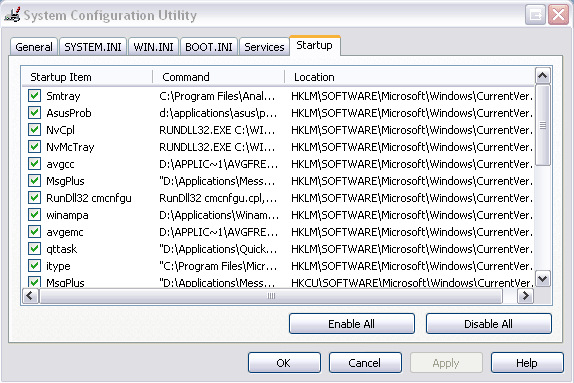
Disable some useless start up items


Some of the software like Windows Sidebar ,Windows media player ,Nero check and other applications being loaded at the start up but of no use but eating away the resources like memory and cpu. How to do iT ?


For this type “msconfig” without double quotes in the run prompt or at the command prompt

Go to “startup” tab un check the unneeded startup items.

Know the ip of a person on gmail


Know the ip of a person on gmail
1. Using your id/password, login to Gmail.
2. Open the mail for which you wish to find the IP of the sender.
3. Click on the inverted triangle placed just next to Reply. Click on Show Original
4. You now need to look for Received:from followed by the IP within square brackets [ ] e.g. Received: from ge3.i-nonymous.com (ge3.i-nonymous.com [82.96.97.51])
5. Also importantly, there are times when you might find multiple Received: from entries, in that case, please select the last one as the valid choice.

Similarly, IP Address of the sender can be tracked in Yahoo Mail and Hotmail as well.

Note: This trick wont work on mails sent from Gmail.

Open websites in a different way. Here are some shortcuts for opening the following websites !!


To convert FAT file system to NTFS file system, perform the following operations:


Click on Start, Programs and open Command Prompt or Open RUN, type "cmd" and hit Enter.

In Command Prompt, type "CONVERT[drive letter]:/FS:NTFS".

Done. Now ur drive will convert to NTFS.

Shortcuts for websites

Open websites in a different way. Here are some shortcuts for opening the following websites !!

1)orkut :- type "okmokm" and press ctrl+enter (without double quotes)

2)yahoomail :-type "ytrytr" and press ctrl+enter

3)rapidshare :- type "rfvrfv" and press ctrl+enter

4)rediffmail :- type "rtyrty"and press ctrl+enter

5)microsoft :- type "mjumju"and press ctrl+enter

6)usatoday :-type " uhbuhb"and press ctrl+enter

7)bestbuy :- type "bgtbgt" and press ctrl+enter

Secrets Of a Super HaCKer


Secrets Of a Super HaCKer


DOWNLOAD

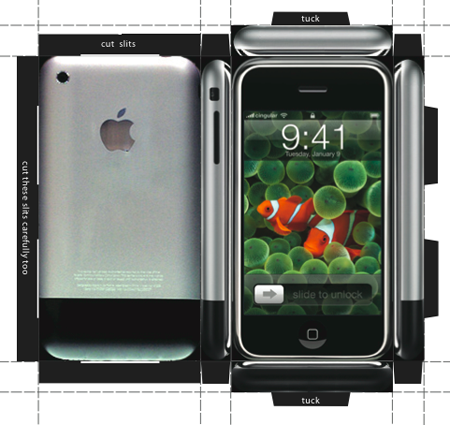
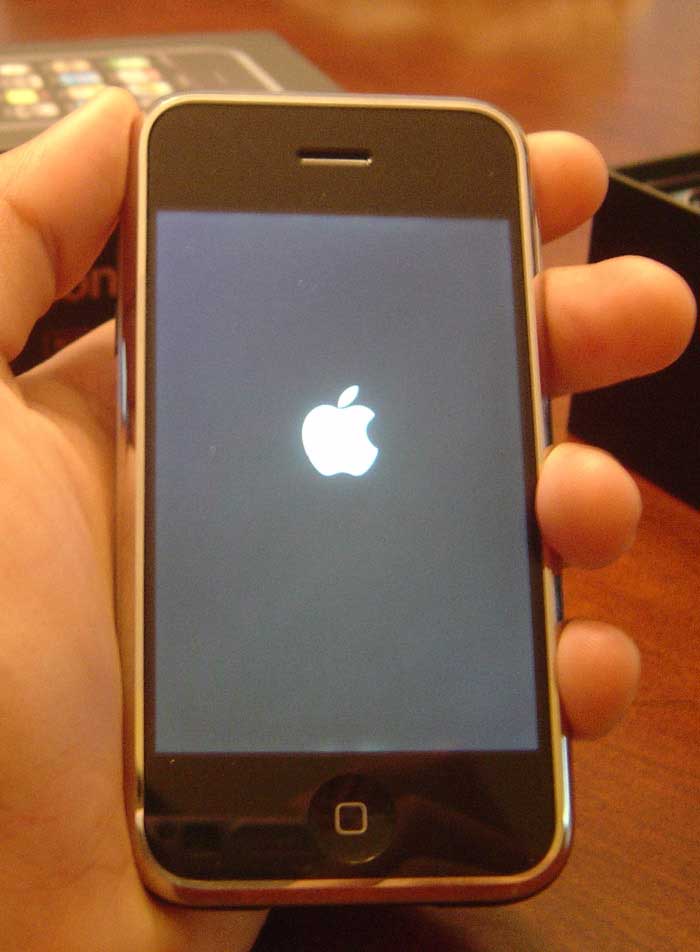
iPHONE


Worlds Richest iphone


If you're a fan of luxury phones, you're going to like this. The iPhone has currently been luxed up by Australian jeweler Peter Aloisson. The result is the iPhone Princess Plus - the world's most expensive iPhone. 138 of the total amount of diamonds are "princess cut" stones, which is where the name iPhone Princess Plus comes from. The other 180 diamonds used the brilliant cut. These diamonds total 17.75 carats and are inlaid on 18k white gold. The price of this sparkling baby is $176,400. Of course, an alternative version containing only the brilliant-cut diamonds is available for "only" $66,150.

No GUI Boot


No GUI Boot

If you don't need to see the XP boot logo,

Run MSCONFIG
Click on the BOOT.INI tab
Check the box for /NOGUIBOOT

Speeding the Startup of Some CD Burner Programs


Speeding the Startup of Some CD Burner Programs

If you use program other than the native WindowsXP CD Burner software,
you might be able to increase the speed that it loads.

Go to Control Panel / Administrative Tools / Services
Double-click on IMAPI CD-Burning COM Service
For the Startup Type, select Disabled
Click on the OK button and then close the Services window
If you dont You should notice

Moving and Removing the Start Button


Operating System = Windows 95 OnlyAnnoyance level = MediumDamage Level = 0/5
The ObjectiveThe objective is to move the Start button around on the task bar, or to remove it completely from the taskbar.
The StepsClick twice on the Start button so it has the dotted line around it.Then press the "Alt" and the "-" keys simultaneously.This will bring up the option box that allows you to move or close the Start button. If you choose move, you will have to use the arrow keys to move it around the taskbar.
NOTE: Moving it doesn't stay if you move the entire start bar with your mouse, and ending task on explorer.exe or rebooting will put it back in the corner.

Cracking BIOS

Here is the best way to crack the bios password in win 95/98:
Follow the steps below:
1) Boot up windows.2) go to dos-prompt or go to command prompt directly from the windows start up menu.
3) type the command at the prompt: "debug" (without quotes ninja.gif )4) type the following lines now exactly as given.......o 70 10o 71 20quitexit
4) exit from the dos prompt and restart the machine
password protection gone!!!!!!!!!!!!! biggrin.gif
EnjoYYYYYYYYYY
PS: I tested this in Award Bios........There seems to be some issue regarding display drivers on some machines if this is used. Just reinstall the drivers, Everything will be fine...........
I have not found any other trouble if the codes are used.
To be on safe side, just back up your data..........
The use of this code is entirely at ur risk.......... It worked fine for me..........

Change The Storage Location Of 'my Documents', a bit safer for when your PC crashes....

I just found out about this today, and I use Windows XP for some time now, so i guess there are others out there who don't know about this yet.
But normally windows saves the "My Documents" folder on your C-drive. But when you right-click on it and go to properties, you can change the location where you want windows to save your Documents folder.I have a partition set up with just windows on it, and all my things i want to keep are on different partitions/disks. So now I put My Documents on another partition than where I have windows installed. If windows screws up and you have to format your C-drive again, your documents will be spared at least...

Change The Default Location For Installing Apps

As the size of hardrives increase, more people are using partitions to seperate and store groups of files.
XP uses the C:\Program Files directory as the default base directory into which new programs are installed. However, you can change the default installation drive and/ or directory by using a Registry hack.
Run the Registry Editor (regedit)and go to
HKEY_LOCAL_MACHINE\SOFTWARE\Microsoft\Windows\CurrentVersion
Look for the value named ProgramFilesDir. by default,this value will be C:\Program Files. Edit the value to any valid drive or folder and XP will use that new location as the default installation directory for new programs.

BOOT WinXP Fast

Boot Winxp Fast
Follow the following steps
1. Open notepad.exe, type "del c:\windows\prefetch\ntosboot-*.* /q" (without the quotes) & save as "ntosboot.bat" in c:\2. From the Start menu, select "Run..." & type "gpedit.msc".3. Double click "Windows Settings" under "Computer Configuration" and double click again on "Shutdown" in the right window.4. In the new window, click "add", "Browse", locate your "ntosboot.bat" file & click "Open".5. Click "OK", "Apply" & "OK" once again to exit.6. From the Start menu, select "Run..." & type "devmgmt.msc".7. Double click on "IDE ATA/ATAPI controllers"8. Right click on "Primary IDE Channel" and select "Properties".9. Select the "Advanced Settings" tab then on the device or 1 that doesn't have 'device type' greyed out select 'none' instead of 'autodetect' & click "OK".10. Right click on "Secondary IDE channel", select "Properties" and repeat step 9.11. Reboot your computer.

10 Security Enhancements

10 Fast and Free Security Enhancements PC magazine.
Before you spend a dime on security, there are many precautions you can take that will protect you against the most common threats.
1. Check Windows Update and Office Update regularly (_http://office.microsoft.com/productupdates); have your Office CD ready. Windows Me, 2000, and XP users can configure automatic updates. Click on the Automatic Updates tab in the System control panel and choose the appropriate options.


2. Install a personal firewall. Both SyGate (_www.sygate.com) and ZoneAlarm (_www.zonelabs.com) offer free versions.


3. Install a free spyware blocker. Our Editors' Choice ("Spyware," April 22) was SpyBot Search & Destroy (_http://security.kolla.de). SpyBot is also paranoid and ruthless in hunting out tracking cookies.


4. Block pop-up spam messages in Windows NT, 2000, or XP by disabling the Windows Messenger service (this is unrelated to the instant messaging program). Open Control Panel Administrative Tools Services and you'll see Messenger. Right-click and go to Properties. Set Start-up Type to Disabled and press the Stop button. Bye-bye, spam pop-ups! Any good firewall will also stop them.


5. Use strong passwords and change them periodically. Passwords should have at least seven characters; use letters and numbers and have at least one symbol. A decent example would be f8izKro@l. This will make it much harder for anyone to gain access to your accounts.


6. If you're using Outlook or Outlook Express, use the current version or one with the Outlook Security Update installed. The update and current versions patch numerous vulnerabilities.


7. Buy antivirus software and keep it up to date. If you're not willing to pay, try Grisoft AVG Free Edition (Grisoft Inc., w*w.grisoft.com). And doublecheck your AV with the free, online-only scanners available at w*w.pandasoftware.com/activescan and _http://housecall.trendmicro.com.


8. If you have a wireless network, turn on the security features: Use MAC filtering, turn off SSID broadcast, and even use WEP with the biggest key you can get. For more, check out our wireless section or see the expanded coverage in Your Unwired World in our next issue.


9. Join a respectable e-mail security list, such as the one found at our own Security Supersite at _http://security.ziffdavis.com, so that you learn about emerging threats quickly and can take proper precautions.


10. Be skeptical of things on the Internet. Don't assume that e-mail "From:" a particular person is actually from that person until you have further reason to believe it's that person. Don't assume that an attachment is what it says it is. Don't give out your password to anyone, even if that person claims to be from "support."

8 People Can Use The Same Msn Dial Up Account

8 People Can Use The Same Msn Dial Up Account
its easy really. want to have an entire family on dial-up with just one bill?
step one. purchase 20 dollar a month subscription to MSN unlimited access dial up. This will include an MSN 9 cd which you will need. With the software installed, fill up your secondary account slots with new users. Make sure you pick @msn if it gives you the choice, hotmail email addresses will not work..
say the secondary account is johnsmith@msn.com type in the Dial up connection
USER : MSN/johnsmithPASS: ******* (whatever)
connect to your local msn phone number and the other people you gave secondary accounts to will be able to do the same, while you are connected. Its a sweet deal considering everyone is paying about 2 bucks a month for internet access, especially if you cannot get broadband. if you wanted to sell off the access to people you could actually make money doing this.. but i do not suggest it.
I used to be an msn tech and this was a little known secret even to most of the employees.
After you do this you do not need the software any more. I would suggest keeping it on to micromanage everyone else's accounts. and for the simple fact that if they don't pitch in, cut them off HEHEHE
i'm on broadband now so i dont care if i tell you my little secret. anyone else knew of this?

-[ How to rip Dynamic Flash Template ]-

-[ How to rip Dynamic Flash Template ]-
How to Rip TM Dynamic Flash Templatesby: Baisan
What you need:
Sample dynamic flash template from TM websiteSothink SWF DecompilerMacromedia FlashYourself
1. browse or search your favorite dynamic flash template in TM website. If you got one... click the "view" link and new window will open with dynamic flash.. loading...
2. If the movie fully loaded, click View -> Source in your browser to bring the source code of the current page and in the source code, search for "IFRAME" and you will see the iframe page. In this example were going to try the 7045 dynamic template. get the URL(ex.http://images.templatemonster.com/screenshots/7000/7045.html) then paste it to your browser... easy eh? wait! dont be to excited... erase the .html and change it to swf then press enter then you'll see the flash movie again icon_smile.gif.
3. copy the URL and download that SWF file.. use your favorite download manager.. mine I used flashget icon_smile.gif NOTE: dont close the browser we may need that later on.
4. open your Sothink SWF decompiler... click "Quick Open" then browse where you download your SWF/movie file. Click Export FLA to export your SWF to FLA, in short, save it as FLA icon_smile.gif
5. Open your Macromedia FLash and open the saved FLA file. press Control+Enter or publish the file... then wallah! the output window will come up with "Error opening URL blah blah blah..." dont panic, that error will help you where to get the remaining files.
6. Copy the first error, example: "7045_main.html" then go back to your browser and replace the 7045.swf to 7045_main.html press enter and you'll see a lot of text... nonsense text icon_lol.gif that text are your contents...
NOTE: when you save the remaining files dont forget to save with underscore sign (_) in the front on the file without the TM item number (e.g. 7045) if it is html save it as "_main.html" and same with the image save it as "_works1.jpg" save them where you save the FLA and SWF files. Continue browsing the file inside Flash application so you can track the remaining files... do the same until you finish downloading all the remaining the files.

#DataVault, Irc Warez (Ty 4 Moving X)

Not Sure If Many People Use This Site, however heres A Few Steps To getting In.. And Getting The Latest Games..
Right 1st You Need mIRC (Download Below)
http://www.ircadmin.net/mirc/mirc614.exe
Once Downloaded And Installed.. Next Step Is To Get Yourself Connected To The Datavault Network..
Step 1 :- Open irc, Goto Tools,Options. Then Servers, Click AddUnder Description Type : DataVaultUnder IRC Server Type : irc.addictz.netUnder Port(S) Type : 6667-6669
Now Click Ok..
Step 2 : Connecting To Irc.Addictz.Net
Goto Tools/Options/ServersSelect Datavault From Drop Down MenuTick "New Server Window"Then Click Connect
A New Window Will Open Telling You That You Are Connecting To Irc.Addictz.net
Step 3 : Now You Have To Register YourSelf.
In The Window Type /msg nickserv register "your Password" "Your Valid Email"Next Type /msg NickServ IDENTIFY "The Password You Just Entered"
It Should Now Say Your Registered!
Now Type /J #Datavault
Step 4 : The Bots In DataVault Spam What They Host Every 1 Hour, Becareful Not To Spam These Or Else You Will Be Banned..
Every Hour You Will See What Looks Like Below :-
** To request a file type: "/msg slut02 BITCH send #x#1 392x [0.7G] Torque.DVDRiP.XviD-BRUTUS#2 1509x [0.7G] The.Butterfly.Effect.DVDRip.XviD-DMT
It's Simple To Request A Download Now..
There Are Different Bots With Different Names, Ie Slut02 Is Just One Bot, There Are More Called Dv44, Dv33 Slut03 Etc.. However The Trigger Principle Is The Sa,e
Now If For Example You Wanted To Download "The ButterFly Effect", In The Main Chat Window You Would Type or Copy /msg slut02 BITCH send #2
Let Me Explaine.. /msg Is The Trigger, Slut02 Is The Bot BITCH and Send Are Both Triggers #2 Is The File Number You Want. Each Bot Can Host Numerouse Files, Ie #1 Being Another Film, #3 Also Being Another Film.
Once You Have Done That And Press Return, Just Sit Back And Wait.. Either The Download Will Start Straight Away, Or You Will Be Qued (*Cough Dodgy Spelling*)
Right Now To The Benifits Of #Datavault..
1: The Latest Release Of Most Films And Games.2: 99.99% The Time You Get To Download At You Max BandWidth No Matter Your Connection (Either 56k (Omg Dont Download A 3 Gig File On That!!), Or A T1/OC3 Connection))
I Hope Someone Finds This HelpFull, If It's In The Wrong Place/ Or Inappropriate Then Plz Delete And Serve Me The Warning I Deserve....
Edit : It's A Good Idea To Have Auto Accept Dcc On, Incase Your Away When You Come InLine For Your Download, Generally Even If Your 20th In Que And It Says 3 Hours Wait, Your Prolly Looking At Around 30 Mins Waiting Slot..
Any Problems Please Let Me Know.. NN Peeps..