iTunes 11: 11 things Apple should change

iTunes 11: 11 things Apple should change

How Apple could repair iTunes' tarnished image

itunes-11-11-things-apple-should-change

iTunes 10 has arrived, bringing new features and new problems

>

When Steve Jobs unveiled iTunes 10, he spent a short while going through its best bits.

There are some things to like, notably improved iOS device sync, with a capacity bar that updates in real-time.

However, plenty of gripes remain, and so below are the 11 things we'd like to see Apple change in iTunes 11.

1. Embrace the cloud

iTunes seems rooted in the past, and it's in danger of becoming a dinosaur. The iTunes Store's fine, but with Apple TV moving away from a purchase model, iTunes 11 should in part follow suit and integrate a music-streaming service. Elsewhere, iOS devices should back-up and sync wirelessly, with new purchases optionally being sent simultaneously to all your devices.

2. Make podcast subscriptions stick

iTunes seems to think that if you've not watched a podcast series you subscribe to in a while, it should stop downloading new episodes. 'Subscribe' should mean just that - after all, it's not like magazine publishers stop mailing new issues to your door if you've not read the previous few.

MacBook Pro review

MacBook Pro review

A refresh for Apple's 17" range-topper, featuring Intel Core i5


apple-macbook-pro-17-2-53ghz-intel-core-i5

With a battery life of up to eight or nine hours, this MacBook will keep you working on the go all day

<>

Apple's 17-inch MacBook Pro is the Rolls-Royce of the MacBook Pro range. For many users it's overkill. Not everyone needs the power and versatility it offers, and at a hundred pounds shy of two grand (possibly more, if you choose customisation options on the Apple online store), it certainly isn't within everyone's price range.

Yet for high-end users such as video editors and graphic designers, who need the extra screen space and processing power, this top-of-the-range 17-inch MacBook Pro 2.53GHz Intel Core i5 could well prove worth the asking price of £1,899.

The mid-2010 refresh brings a series of exciting new technologies. Automatic Graphics Switching means you no longer have to open your System Preferences to switch between integrated graphics for better battery life or the discrete chip, which is more powerful but heavier on the battery.

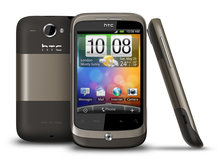
HTC Wildfire review

HTC Wildfire review

The low-cost version of the HTC Desire arrives


the-definitive-htc-wildfire-review

The definitive HTC Wildfire review

<>

A smartphone for those on a tight budget, the HTC Wildfire doesn't skimp on the specs; the touchscreen handset runs Android 2.1 with the user-friendly HTC Sense UI and is rocking the same processing power as 2009's phone of choice, the HTC Hero.

We'll be running this review a little differently – HTC gave us three phones to test rather than one, so in addition to the main review we've got TechRadar readers Paul Jones (PJ) and Dennis Shorter (DS) to give their two penn'orth.

PJ: I'm an HTC Tattoo user, so it's hard not to compare the Wildfire to it the whole time I've been using it. The good news is it seems to be much better.

DS: I've not been a fan of HTC since I was forced to use the HTC Touch Diamond for work – the stylus and convoluted user interface was a real turn off. Having not touched an HTC product since then, I'm glad to say that the new range appears to be a lot more user-friendly.

The 3.2-inch QVGA capacitive touchscreen and optical trackpad work in tandem for easy navigation, while the 5-megapixel camera will keep photographers happy even in the dark, thanks to the inclusion of an LED flash.

Nvidia GeForce GTX 480 review

Nvidia GeForce GTX 480 review

Is the GTX 480 the fastest and best graphics card ever built?


nvidia-geforce-gtx-480

Nvidia's GeForce GTX 480 is the fastest single-GPU card on the market - but it comes at a price

<>

The Nvidia GeForce GTX 480 is indeed the fastest single GPU graphics card in the world.

The air of relief is palpable as the great and the good of Nvidia gather beside this latest graphical opus in its downtown Paris office.

The relief is not just our ours at having finally gotten hold of a working sample of the GeForce GTX 480, but representing the culmination of a lot of hard work, a lot of missed launch slots and a lot of rumour-mongering in the world's tech press.

It's one hell of a relief for everyone at Nvidia associated with the GeForce brand.

Apple IPhone4 Review

HD video recording, gorgeous display - but can it justify the price?


the-definitive-apple-iphone-4-review

The definitive Apple iPhone 4 review

>

Apple's launch of the iPhone 4 has seen the greatest excitement for a new phone ever - and with HD video recording, a super high-res screen and ridiculously slim dimensions, it's not hard to see why.

But things are a little different now - not only was the iPhone 3GS something of a non-update to the iPhone range, but there are finally decent alternatives in the smartphone market, with the HTC Desire and Samsung Galaxy S leading the Android fight right to Apple's door.

Add to that the first major leak of an Apple product a couple of months before launch, and suddenly the iPhone 4 has a lot to do to impress.

E-Mail on phone without Internet BSNL

You can get all e-mails automatically without internet on mobile.
sms
MMAIL SUBM
to
58877
for Rs.49/PM
or
MMAIL SUBW
to
58877
for Rs.15/wk

Airtel Timer SMS


Airtel Timer SMS
eg: 9496827230 1402 1830 happy valentines day
to
52233
(Re.1/sms)
Delivered in 14th Feb @ 6.30 pm

NTFS V/S FAT

NTFS vs. FAT
To NTFS or not to NTFS—that is the question. But unlike the deeper questions of life, this one isn't really all that hard to answer. For most users running Windows XP, NTFS is the obvious choice. It's more powerful and offers security advantages not found in the other file systems. But let's go over the differences among the files systems so we're all clear about the choice. There are essentially three different file systems available in Windows XP: FAT16, short for File Allocation Table, FAT32, and NTFS, short for NT File System.

Change the shut down button in the start menu


Windows 7 displays a shut down button by default in the start menu which will shut down the computer when it is activated. Some users might prefer a different default action. This can be configured by right-clicking the shutdown button and selecting properties from the menu.

This opens the Taskbar and Start Menu Properties with an option to change the Power button action from Shut down to all other available actions that become available when clicking on the down arrow next to the shut down button. This includes switching users, restarting the system or entering sleep mode.

Windows 7 Tricks and Keyboard Shortcuts


I’ve been running Windows 7 RC for a little over a week now and can’t imagine going back to Vista at this point. I decided to start with a fresh install of Windows 7, so I’ve been in the process of reinstalling all of my applications and cleaning up my disk drives.

In the process, I went searching to see if there are any interesting Windows 7 power toys or tricks available. While I didn’t find any power toys, I did discover that all of the Windows Vista tricks are still available on Windows 7.


Window Management

  • Win+Left Arrow and Win+Right Arrow: Dock a window to the left or right half of the screen.
  • Win+Shift+Left Arrow and Win+Shift+Right Arrow: Move a window from one monitor to another, keeping them in the same relative location to the monitor’s top-left origin.
  • Win+Up Arrow and Win+Down Arrow: Maximizes and restores/minimizes a window.
  • Win+Shift+Up Arrow and Win+Shift+Down Arrow: Maximizes and restores the vertical size of a window.
  • Win+Home: Minimize all the non-active background windows, keeping the window you’re using in its current position. (Press Win+Home again to restore the windows to their original locations.)
  • Win+(plus key) and Win+(minus key): Zoom in or out using Windows Magnifer.
  • Win+E: Opens Windows Explorer.
  • Win+U: Opens the Ease of Access Center.
  • Win+D: Show/hide the desktop.
  • Win+F: Opens the Search Results window.
  • Win+L: Locks the computer.
  • Win+B: Sets focus to the “Show hidden icons” button on the task bar.
  • Win+M: Minimizes all windows.
  • Win+Ctrl+F: Opens the Active Directory Find Computers dialog.

Taskbar

  • Win+Space: Use “Aero Peek” to see any gadgets or icons you’ve got on your desktop.
  • Win+R: Opens the Run dialog.

Check out our new link cloud


this is a new stuff please post ur response